Tragus is a neat piercing, but now, its is also an easy to use plugin to handle user-settings save, load, runtime edit, and easy UI-bindings.
- (Tra) Godot User Settings
- Features overview
- By example
- Quick workflow overview
- User configuration file
- Default configuration file
- Creating user settings
- Editing user settings
- Taking effects to the user's config file
- Base Setup
- ⚠️ Now, very important !
- Adding new user settings
- Implement UserSetting
- Section & Key
- ProcessValue
- (optionnal) DefaultFallBack
- Advanced
- Register the autoload
- ⚠️ Now, very important ! (reminder)
- Implement UserSetting
- Binding this to the UI
- Stay synchronized !
- Enable the synchronisation
- Send edit requests
Features overview
The plugin is based on :
UserSettingsServer: It handles all the config file boiler plate, and lets you focus on setting up new user settings naturally.
It provides methods to save the current state of the user's settings into his config file, reset to default settings, or abort changes.
UserSetting: A base abstraction for you to extend into new user settings !
It provides methods to edit the setting at runtime, and stay synchronized with its real value (typically for UI elements)
The plugin allows, auto-magically :
- User settings loading using
.inifiles - brief - User settings persistence using
.inifiles - brief - Default settings setup using a
tragus_default_settings.inifile - brief - An easy and straightforward way to add new user settings. brief
- Runtime and responsive edition of settings - brief
- An even easier way to bind UI to edit such settings, and keep multiple sources synchronized. brief
By example
Below, I wrote a tour on the workflow of the plugin, as well as a quick guide on what you need to do to implement new user settings, and how to setup UI to edit them.
However, it's sometimes easier to learn by example ! So I added a quick one in Examples.
- ExampleResolutionUserSetting defines a user setting for the game's rendering resolution.
- example_resolution_picker shows how to make a UI element that allows the player to edit this setting.
- example_resolution_reset_button shows how to make a little button that resets the setting to the value specified in
tragus_default_settings.ini. - example_apply_button shows how to make a button that saves all currently edited settings to the user's
.iniconfig file. - example_abort_button shows how to make a button that aborts the currently edited settings, and resets them to the user's
.iniconfig file.
You can read more about the detailed features in the full documentation of the plugin.
Quick workflow overview
The workflow using TraGUS is pretty simple.
User configuration file
On game startup, each UserSettings registers itself automatically, and tries to initialize with either the user's .ini config file, or the tragus_default_settings.ini if the user's don't specify it.
To save the user's configuration in such file, see Taking effects.
Default configuration file
You can create that file and edit it freely unde res://tragus_default_settings.ini, to setup the default configuration you wish for.
Make sure the section names and setting_keys you write in it do correspond to the Section and Key field of your UserSetting implementations.
You can optionnally specify a last resort default fall back in each UserSetting implementation.
This would notably allow you to, instead of writing the wholetragus_default_settings.iniby hand, simply run your game once and let UserSettingsServer initialize the file, then only edit the values in it.
Creating user settings
New settings options are represented by concrete implementations of UserSetting. It could be a resolution setting, frame rate setting, or really anything, related either to the engine, or to your specific game itself.
Implementing such is fairly simple, in just 4 small steps described in Adding new user setting. You can also take a look at this resolution setting example.
Editing user settings
A UserSetting is a singleton that exposes a few ways to edit it and stay synchronized, for example, through some UI nodes.
When you edit it, it takes effect immediately, but in cache. The setting isn't yet saved to the user's config file. For any effect on the actual config file, see the next section, UserSettingServer
MyUserSetting.Changedsignal is emitted when the value of the setting changes. The first argument is the node that requested this change, the second is the new value of the setting. This can be used to stay in-sync accross multiple edit sources of the same setting.MyUserSetting.TryUpdateValue/GdTryUpdateValuesends a request to change the setting. The first argument is the node requesting this change, the second is the requested value. It returns false if the request was rejected.MyUserSetting.Resetsends a request to set the setting to the corresponding entry intragus_default_settings.ini, and returns false if the request was rejected.
Taking effects to the user's config file
The UserSettingsServer handles all the boilerplate to bind the settings to .ini config files.
UserSettingsServer.Savewrites the current state of all registeredUserSettingto the user's config file.UserSettingsServer.Abortaborts the current state of all registeredUserSetting, and sets them back to the user's config file.UserSettingsServer.Reset(section)andUseSettingsServer.ResetAll()are little helpers built on top ofUserSetting.Resetto respectively reset all registered settings under a given section, or simply all registered settings, to the corresponding value intragus_default_settings.ini.
Base Setup
First, you must enable the plugin, of course, under Project > Project Settings > Global > Plugins.
Then, you must make UserSettingsServer an autoload.
For this, go under Project > Project Settings > Global, then in Autoload, select the directory icon and browse in your game file to select addons/TraGUS/UserSettingsServer.cs.
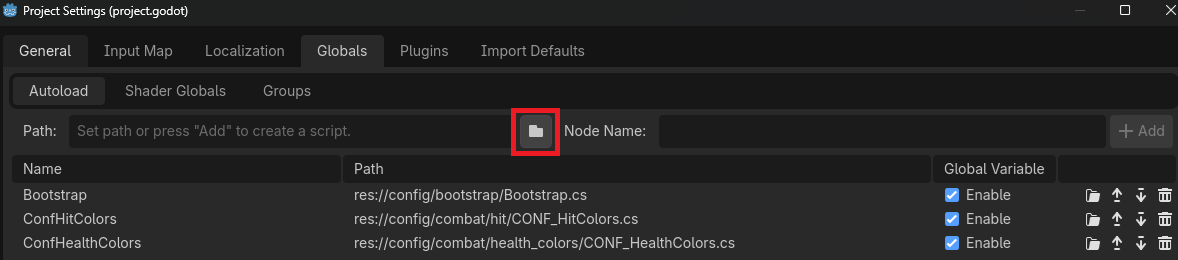
⚠️ Now, very important !
Any UserSetting you will implement (see Adding new user settings) must appear lower in the autoloads list than the UserSettingsServer, that is, the Server must be loaded before the settings.
Adding new user settings
To add new user settings, you must implement a class extending UserSetting, and set it as an autoload.
Implement <a href="UserSetting.cs" >UserSetting</a>
You have only 4, straightforward, things to implement.
Section & Key
Defines the section this setting will be registered under in the user's .ini config file, and the setting name.
This setting for example, will be seen as follows in the .ini file.
ProcessValue
Holds the actual behavior of the setting, like, changing the size of the window, the engine's frame rate, the color of the UI etc.
(optionnal) DefaultFallBack
Is not required, you can optionnaly specify it to make sure the setting is always initialized to a valid value, even if none of the user's nor default .ini config file contains a valid entry for it.
If you really trust your tragus_default_settings.ini, you don't need to implement it.
Advanced
Besides, there's a couple of methods you can overload for advanced behaviors.
Is called right before the the setting is registered, allows for some further initialization behavior, like loading some resources.
Allow to specify some advanced de/serialization mechanisms, if you use more complex settings values, like Arrays.
Register the autoload
Once you have implemented these 4, function, you can register the node as an auto-load, just like you did for the settings server.
⚠️ Now, very important ! (reminder)
Any UserSetting you will implement (see Adding new user settings) must appear lower in the autoloads list than the UserSettingsServer, that is, the Server must be loaded before the settings.
Binding this to the UI
Now, to bind this to the UI, nothing is simpler !
Stay synchronized !
First, you must define a callback to keep the UI synchronized if other sources can modify the same setting.
The sender is the person responsible for the setting's value change. If it's ourself, we don't need to update the UI since we actively did it !
Enable the synchronisation
Now, you need to connect this callback to the setting's Changed signal, typically in your node's _ready function, and maybe also start your ui synchronized !
Let's say you have implemented a UserSetting, and registered it as autoload under the name SuperNeatSetting.
Send edit requests
Finally, for your UI to be able to modify the setting, you simply need to send a request whenever you want to, for example, on a button click, or any other callback, while stamping the request with your name (self)
Additionnaly, you might want to handle the case where the operation was not successfull.
And that's it ! You can have as many ways to edit the same setting, and they'll stay synchronized !
Additionnaly, you can also reset a setting to a default value you have set in tragus_default_settings.ini using SuperNeatSetting.Reset().